
Papra vs Paperless-ngx: OCR, Sharing and Migration Compared
Papra keeps a shared archive simple. Paperless-ngx offers deeper OCR output, permissions and workflows. Here is what matters before you choose or migrate.
SoftDesk Editorial ·
Papra is the better starting point for a straightforward shared archive. Paperless-ngx is the stronger choice when you need searchable PDF exports, detailed document permissions or a carefully automated filing system.
The difference becomes obvious with a scanned invoice. Both applications can extract its text so you can find it again. Paperless-ngx can also produce a searchable archival PDF to send elsewhere. Papra keeps the uploaded file unchanged and stores the extracted text separately. If you mostly retrieve documents inside your archive, that may be all you need. If you regularly hand searchable files to other people, it matters.
Here is how the two compare as of October 22, 2026.
The short version
| What you need | Better fit | Why |
|---|---|---|
| A simple home or small-team archive | Papra | Organizations, tags and search without as much filing machinery |
| Searchable PDFs outside the application | Paperless-ngx | OCR can create a separate PDF/A archive while retaining the original |
| Different access rights for individual documents | Paperless-ngx | Explicit owners plus view and edit permissions for users and groups |
| An occasional password-protected document link | Papra | Password and expiry controls are built into its sharing flow |
| Detailed intake rules and metadata automation | Paperless-ngx | A broader workflow system and dedicated filing fields |
| An official hosted service instead of running a server | Papra | Managed free and paid plans alongside self-hosting |
Neither product wins simply because it has more features. A household collecting warranties and bills has different needs from a team routing invoices into restricted archives.
OCR: searchable inside the app, or searchable after download?
Papra does have OCR. Its default internal extraction uses the Lecture library and Tesseract. It also supports Mistral OCR, a self-hosted Docling server, Azure Document Intelligence and a custom HTTP service. You can configure an ordered fallback chain rather than depend on one provider. These are materially different deployment choices: a local extractor and a cloud OCR API do not have the same costs or data handling. The content-extraction guide explains each option.
The important limit is the output. Papra's no-mutation principle means that an uploaded scan is not rewritten with an invisible text layer. Search can find words extracted from it, but downloading the original scan does not turn it into a searchable PDF. A PDF that already contained selectable text retains it.
Paperless-ngx takes a different approach. Its local OCR pipeline uses OCRmyPDF and Tesseract, and can retain an OCR-processed PDF/A alongside the original. Current defaults use automatic OCR and archive generation: scanned PDFs and images can get an archive, while born-digital PDFs with existing text generally do not need that extra processing. Paperless also offers optional remote Azure OCR, disabled by default. The OCR settings control these choices.
For a searchable export, Paperless-ngx has the clearer advantage. For finding a receipt inside the application, both can do the job. Neither engine list establishes which will read your faded thermal receipts more accurately. Try a few awkward documents in the languages you actually use before moving a whole archive.
Papra is also moving quickly. Its October 1 release added document reprocessing from the Content tab, more Docling options and an OCR fix for rotated images. Older comparisons that describe its extraction as fixed or rudimentary miss those changes.
Sharing: sending a file and sharing an archive are different jobs
Papra offers public document links that do not require a recipient account. You can add a password and expiration date, and manage links centrally. This arrived in version 26.5, despite older introductory material still describing sharing as forthcoming. See the Papra changelog.
For ongoing collaboration, Papra organizes documents and members into organizations. That is a natural arrangement when everyone in a household or small team should work in the same archive. Its platform-administrator role is separate from organization membership, as explained in its roles documentation.
Paperless-ngx also supports external share links, including expiration. Its more important advantage is internal access control: documents have an owner and separate view and edit grants for users and groups. You can also apply permissions in bulk. This is the more suitable model when two people should share some documents but not the entire collection.
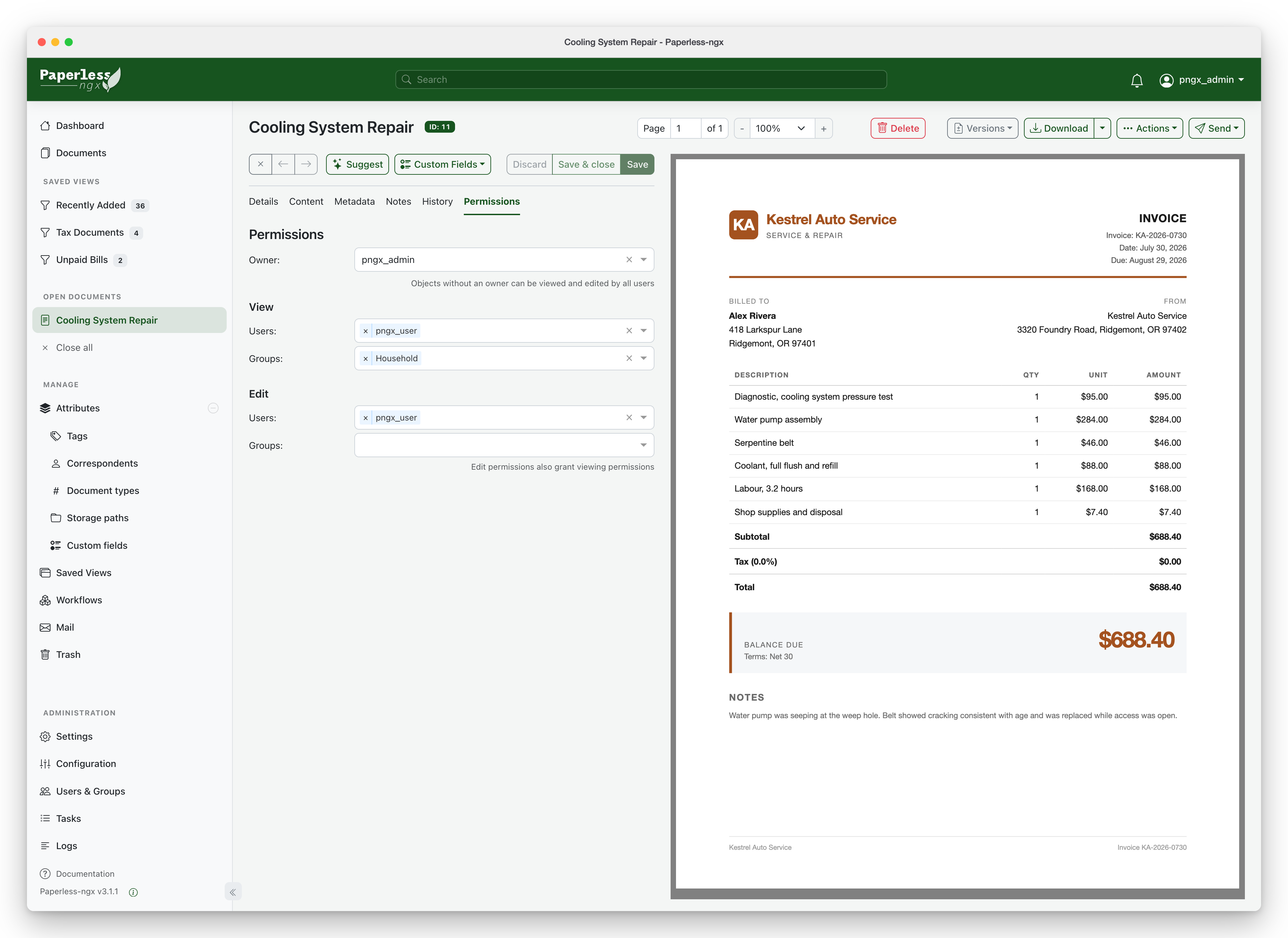
Paperless-ngx separates document ownership from view and edit access. Screenshot: Paperless-ngx project, GPL-3.0.

There is a practical trap here: permissions on a Paperless tag do not automatically restrict every document carrying that tag. Configure document access deliberately. The permissions guide explains the distinction.
Choose Papra's organization model when a shared collection is the goal. Choose Paperless-ngx when access differs document by document. Do not choose between them on the mistaken assumption that only one can share files.
Filing and automation
Papra's appeal is that the archive stays approachable. A tagged document list, search and custom properties cover many everyday filing needs. Tagging rules can classify documents from their name or extracted content, and the product also has configurable automatic tagging. You do not have to invent an elaborate filing taxonomy before saving your first bill.
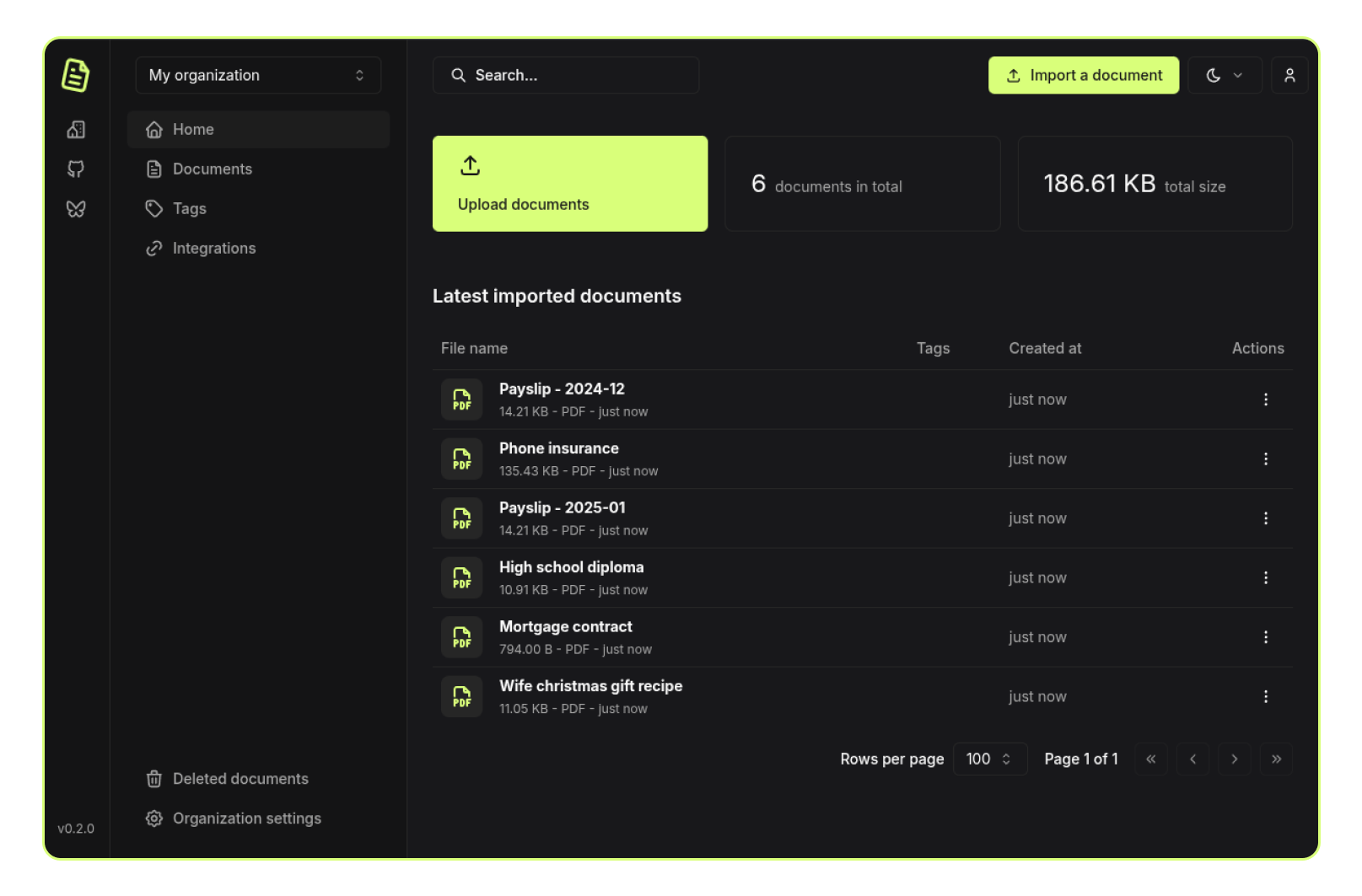
Papra puts its document list at the center, with organizations, tags and custom properties around it. Screenshot: Papra project, AGPL-3.0.
Paperless-ngx gives dedicated roles to correspondents, document types, storage paths and custom fields. Its workflows can assign metadata and permissions as documents enter or change in the system. For recurring paperwork, that structure can be useful: an incoming supplier invoice can be classified and routed without repeating the same manual edits. The workflow documentation shows the available triggers and actions.
The trade-off is maintenance. Rules need to match the documents you receive, and someone has to understand what happens when rules overlap. If your archive is mostly a place to put documents and search for them later, Papra asks less of your filing system. If consistent metadata and controlled intake save work every week, Paperless-ngx gives you more to build with.
Hosting and cost
Both projects can be self-hosted without a software subscription. The server, storage, backups and maintenance still belong in the budget.
Papra's basic Docker Compose setup is a single application service with persistent application data. Adding Docling or external extraction services increases that footprint, so a minimal installation is not a benchmark for every configuration.
Paperless-ngx has a more involved deployment. Its recommended setup includes the application, a database and a Redis-compatible message broker; current Compose examples use Valkey. Optional document-conversion services add more moving parts. That is manageable for an experienced self-hoster, but it is a meaningful difference for someone who only wants to file household paperwork. Follow the current installation guide rather than an old Compose example.
Papra also offers an official managed service. Its pricing page lists a free plan with 512 MB and three members per organization. Annual billing puts Plus at $90 a year for 5 GB and ten members, and Pro at $300 a year for 50 GB and fifty members. Those are annual totals, not month-to-month prices.
That makes Papra the easier recommendation if you do not want server administration at all. If you already run Paperless-ngx reliably, however, a smaller deployment alone is a weak reason to rebuild a working archive.
Migration: move the filing system, not just the PDFs
Papra has a native Paperless importer in its CLI. After configuring the CLI, the command is papra import paperless ./export.zip. It takes a Paperless export ZIP containing manifest.json and guides you through choosing the destination organization, documents and tags. The current import wizard shows what it transfers.
The current importer handles document files and tags. It can match tags already in Papra or create them, including their colors. It does not rebuild the rest of a Paperless installation: correspondents, document types, custom fields, dates, notes, access permissions and workflows need separate attention. The uploaded filename also matters. Paperless titles are not faithfully preserved as a separate title field, a limitation tracked in Papra issue 1425.
There is also a community tool, paperless2papra. Its documented mapping converts correspondents and document types into prefixed tags, puts dates and archive serial numbers into document names, and transfers OCR text. That may retain more useful information, but it changes the structure. A correspondent stored as a tag is no longer a dedicated correspondent field. This tool is separate from Papra's built-in importer.
Before switching:
- Make a full Paperless exporter backup, including the manifest and original files. Keep any generated archive PDFs too. A folder of downloaded PDFs alone is not a complete backup of your filing system.
- Import a representative batch into a separate Papra organization. Include a scan, a digital invoice, a renamed document, unusual filename characters and records with custom fields.
- Compare document counts, names, tags, dates and search results. Open and download the files. Decide whether you need the original scan or Paperless's searchable archive copy in the new system.
- Recreate and check access with a normal member account before inviting colleagues. Do not assume permissions followed the documents.
- Keep Paperless and its backup until you have reconciled the migration. A successful upload count does not prove that the surrounding metadata survived.
If those missing fields are central to how you find and control documents, staying with Paperless-ngx is usually the better decision.
Which should you choose?
For a new household archive or a small team with broadly shared access, start with Papra. Its simpler organization model and official hosted option remove work that many people do not need. The SoftDesk Papra profile gives a shorter overview of the product.
For a document-heavy operation that needs searchable exported PDFs, restricted access and repeatable filing rules, choose Paperless-ngx. Its extra structure earns its keep when you use it.
If you already have a well-organized Paperless-ngx installation, keep it unless Papra solves a specific problem for you. A cleaner interface is attractive, but it does not automatically compensate for losing the metadata and permissions you spent time getting right.